Launcher Settings
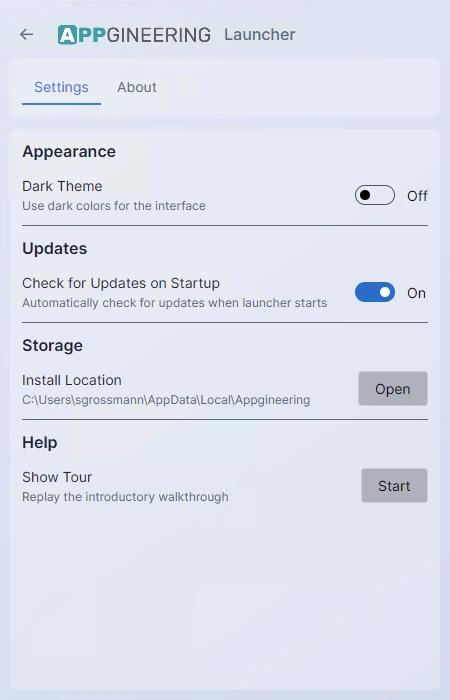
Open the Launcher settings by clicking the three-dot menu in the top bar and selecting Settings. The Settings page has two tabs: Settings (the launcher-wide preferences described here) and About (covered on the About & Licenses page).
Appearance
Dark Theme
Toggles between the light and dark visual theme. By default the Launcher follows your operating system's appearance setting — if you change your OS to dark mode, the Launcher follows. Toggling Dark Theme in Settings overrides the system setting for the Launcher only.
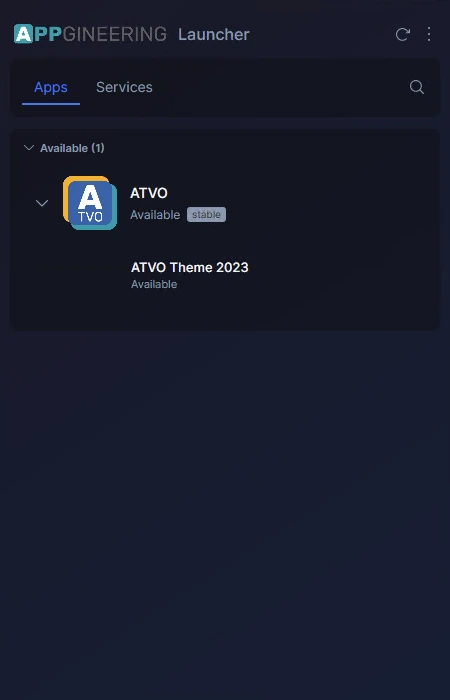
The change takes effect immediately and is remembered the next time you start the Launcher.
Updates
Check for Updates on Startup
When enabled, the Launcher checks both for new versions of itself and for updates to each installed application every time it starts. When disabled, updates are only checked when you click the refresh icon in the top bar.
Leave this on unless you have a specific reason to disable it — keeping installed apps current is the main reason to run the Launcher.
Storage
Install Location
Displays the directory under which all applications managed by the Launcher are installed. Each application gets its own subfolder. The Open button next to the path reveals the folder in your file manager so you can inspect it directly.
The install location is fixed per platform and cannot be changed from inside the Launcher.
Help
Show Tour
Replays the First-Launch Tour from the beginning, even if you have already completed or skipped it.
Get Help
The top-bar Help menu item opens the Appgineering Discord community in your browser, where you can ask questions and report issues. For account or billing matters, see Getting Help.