Managing Applications
The Apps tab is the core of the Launcher. It lists everything you can install, what you already have installed, and anything that is not compatible with your current system.
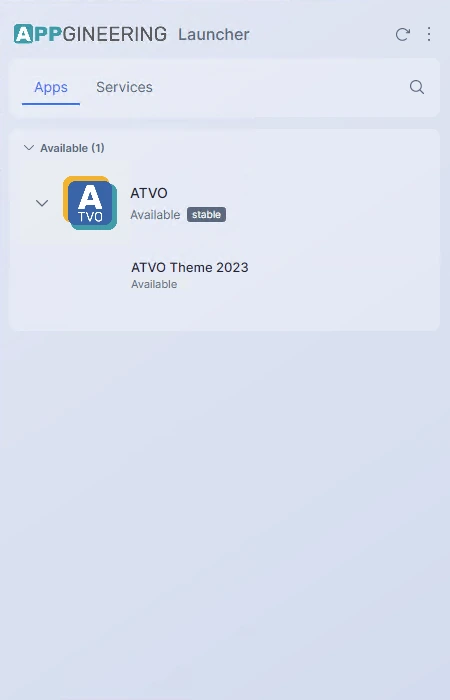
List Sections
The application list is divided into three sections, each with a count badge in its header:
- Installed — Applications currently installed on this device.
- Available — Applications you can install but have not yet installed.
- Unsupported — Applications that exist in the catalog but do not support your current operating system or hardware.
The Available and Unsupported sections can be collapsed by clicking their headers. The Installed section is always expanded so your installed apps are never hidden behind a click.
Searching for an Application
Clicking the magnifying glass icon in the top bar expands an animated search field. The list filters in real time as you type, across all three sections simultaneously. A small clear (×) button appears once you have typed something; clicking it empties the field and restores the full list.

Closing the search bar (clicking the magnifying glass again) also restores the full list.
Refreshing the List
The refresh icon next to the search button does two things:
- Re-downloads the catalog of available applications from Appgineering's servers.
- Checks every installed application for new versions on its configured release channel.
The icon spins while the refresh is in progress. The list updates automatically when it finishes — newly available apps appear in the Available section, and any installed app with a pending update gains an Update button on its row.
Application Row Quick Actions
Each application row shows the app icon, name, and one or more action controls depending on the app's current state:
- Not installed — An Install button. See Installing & Launching.
- Installed and up to date — An Open button with a flyout menu (Versions, Settings, About, Uninstall).
- Installed with update available — An Update button alongside the Open button. See Updating an Application.
- Unsupported — No action; the row is grayed out and shows an explanatory badge.
Clicking the row body (anywhere outside the buttons) opens the application detail view.