Installing & Launching
This page covers two of the most common actions in the Launcher: installing an application for the first time and launching one that is already installed.
Installing an Application
Click Install on any app in the Available section. The Launcher downloads the latest version on your release channel (Stable by default), runs the installer in the background, and moves the app to the Installed section when complete.
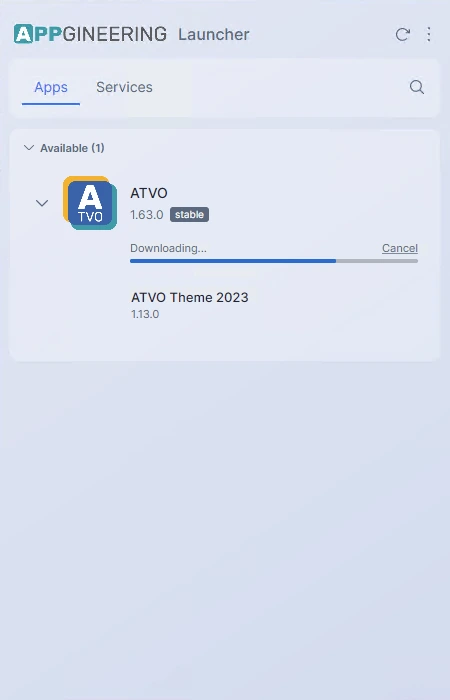
You can continue to use the Launcher while an install is in progress — browse other apps, change settings, or even start additional installs in parallel. Closing the window does not interrupt the install; it continues in the background. When the install finishes, a system notification tells you the app is ready to use.
If you click into an Available app's detail view, you will find the same Install button in the header, along with a Versions tab where you can pick a specific version instead of the latest. See Version History for details.
Launching an Application
For installed applications, click Open to launch the app. If the app is already running, the Launcher brings its window to the foreground instead of starting a second instance.
If the launch fails — for example, because the installed files have been moved or deleted — an in-app notification appears at the bottom of the window explaining what went wrong. Reinstalling the app from its detail view usually resolves the problem.