Updating an Application
When an installed app has a newer version available on its current channel, the Launcher surfaces the update in three places:
- The app row in the list shows an Update button next to Open.
- The application detail view shows an Update Available button in the header.
- The Versions tab shows the new version with an Update action.
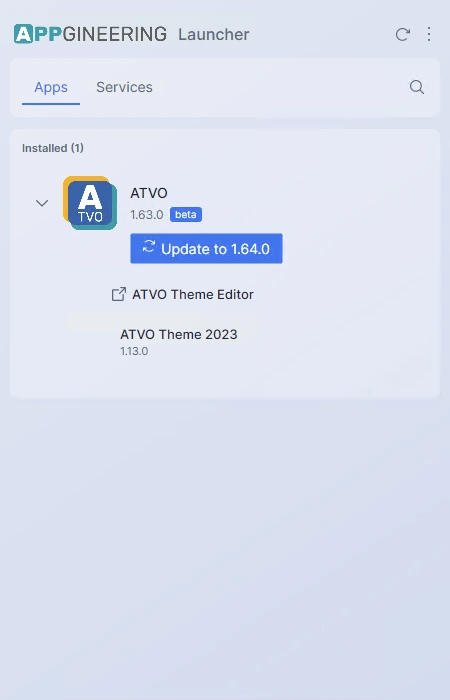
Clicking any of these triggers the update. The new version is downloaded, the running app (if any) is closed, the update is applied, and the previous version is removed.
Closing a Running App Before Updating
If you trigger an update while the app is running, the Launcher shows a dialog asking whether to close the app and continue, or cancel the update.

Choosing Close App asks the app to close gracefully. If it does not respond within a few seconds, the Launcher waits for you to close it manually before continuing.
Mandatory Updates
Some updates are flagged by the publisher as mandatory — typically because they fix a serious bug or are required for compatibility with a server-side change. When a mandatory update is pending, the Launcher displays a red warning banner inside the application detail view and the Open button is replaced by Update.
Mandatory updates cannot be skipped: you must apply the update before you can launch the app again. The Launcher itself will keep functioning normally — only the affected app is blocked.