Per-Application Settings
The Settings tab of each application contains everything specific to that application's installation: where it lives on disk, which release channel it follows, whether updates are locked, and how to uninstall it.
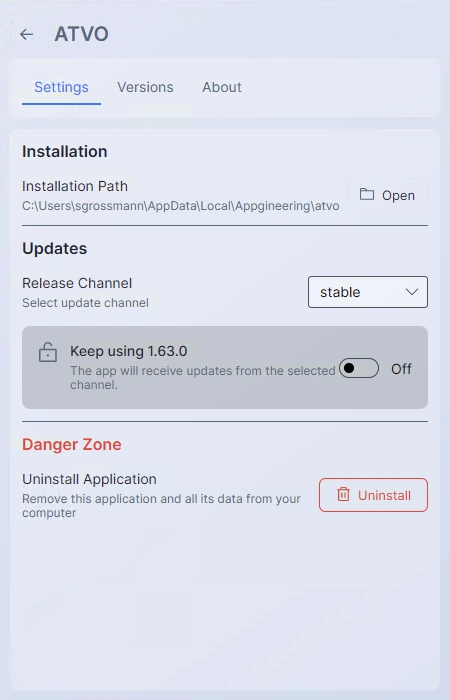
Installation Path
A read-only path showing where the application is installed on disk. The Open button next to it reveals the folder in your file manager (Windows Explorer or macOS Finder).
The path is determined by the Launcher's global install location — each application gets its own subfolder beneath it.
Release Channel
A dropdown to switch the application between Stable, Beta, and Alpha. See Release Channels for what each channel means and how switching works.
Version Lock
A toggle that prevents the Launcher from auto-updating this application. See Version Lock.
Uninstall
A red button that opens the uninstall confirmation dialog.
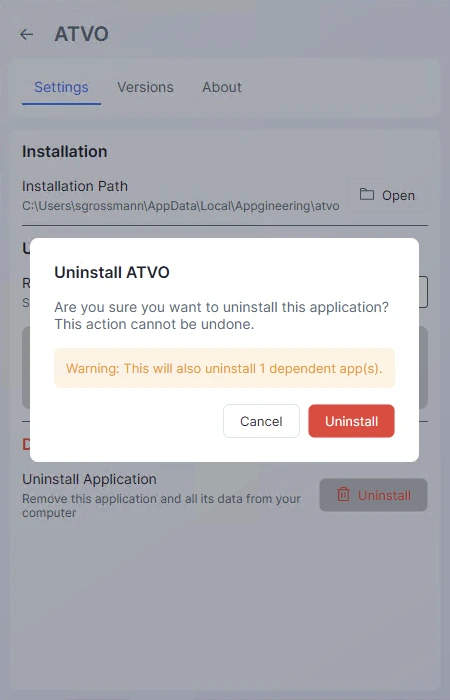
If the application has dependent child apps installed (for example, ATVO themes when uninstalling ATVO itself), the dialog lists them and warns that they will be uninstalled too. See Themes & Child Applications for how dependencies work.
If the application is currently running, the dialog shows a red error banner and the Uninstall button is disabled. Close the running app, then try again.
Uninstalling removes the application's installed files. User-specific settings and data created by the application are typically kept in your user profile (%APPDATA% on Windows, ~/Library/Application Support on macOS) and are not removed by the Launcher — reinstalling the app later will restore your previous configuration.