UI Overview
This page describes the overall layout of the Launcher window so the rest of the documentation can refer to specific regions by name.
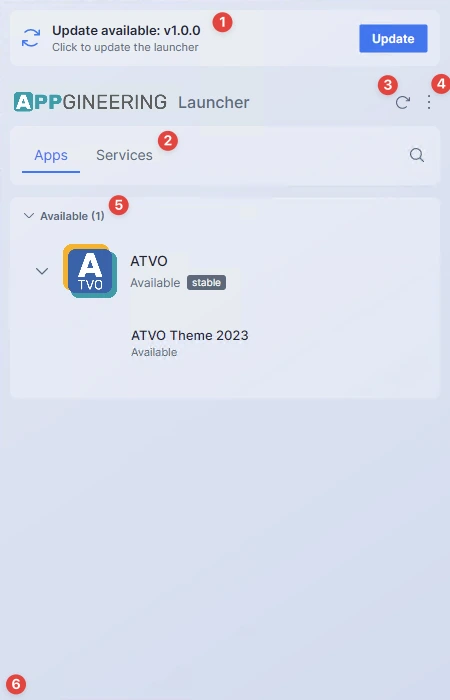
The Main Window
The Launcher window is a fixed-size panel — it does not resize and does not maximize. It is intentionally compact so it can sit in a corner of your screen without dominating it. The window uses rounded corners, a subtle gradient background, and either a light or dark visual theme.
On Windows the window is set to stay on top of other windows by default, so it remains visible while you work. You can still hide it by closing it (which sends it to the tray) or by clicking the tray icon.
The Top Bar
The top bar is the persistent header you see in every view of the Launcher. From left to right it contains:
- The Apps and Services tabs that switch between the two main lists.
- A magnifying glass icon that expands the search bar.
- A refresh icon that re-fetches the catalog and checks installed apps for updates.
- A three-dot menu that opens the launcher-wide menu (Settings, About, Help, Quit).

When you navigate to a detail view (such as an application page), the tabs are replaced by a back arrow and the title of the current screen.
The Tray / Menu Bar Icon
On Windows the Launcher places a colored icon in the system tray. On macOS it places a template (monochrome) icon in the menu bar that automatically adapts to your appearance setting. Clicking the icon toggles the window between hidden and visible — clicking it when the window is open hides the window, clicking it when the window is hidden brings it back.

Navigation and the Back Button
Most detail screens have a back arrow in the top-left of the window where the tabs normally sit. The Launcher uses a navigation stack: opening an application, then jumping to its release notes, then pressing back returns you step-by-step to where you started, rather than always returning to the main list.