The Application Detail View
Clicking the body of an installed app row opens its full detail view. This view has three tabs and a header that always shows the app icon, name, and (where applicable) an Update Available button.
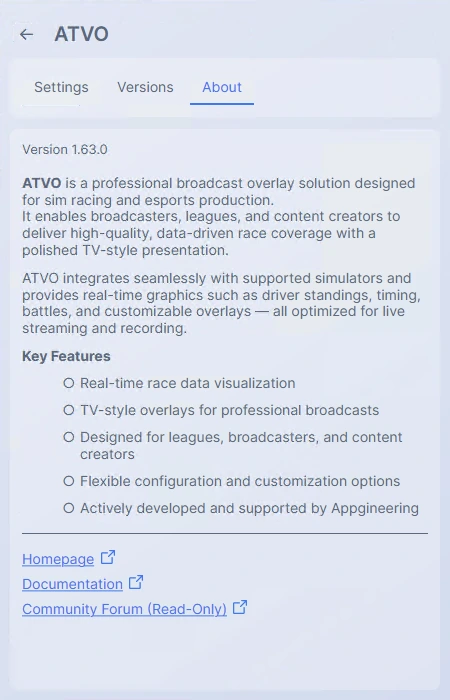
About Tab
Shows the app's icon, name, current installed version, a markdown description provided by the publisher, and any helpful links such as a homepage, support contact, or documentation. Clicking a link opens it in your default browser.
Versions Tab
Lists every version of the application available across all release channels, newest first. Each row shows the version number, release date, a channel badge (Stable / Beta / Alpha), an optional Required badge for mandatory versions, and an action button that depends on the version's relationship to your current install:
- Installed — A non-interactive label on the version you currently have.
- Update — Blue button on newer versions on your current channel.
- Downgrade — Orange button on older versions on your current channel.
- Install — Blue button on any version when no version is currently installed.
If a version belongs to a different release channel than the one you are on, an info icon appears next to it. Hovering the icon explains that switching to that version will also switch your release channel.

Clicking a version row (outside its action button) opens the release notes for that version. See Version History for details.
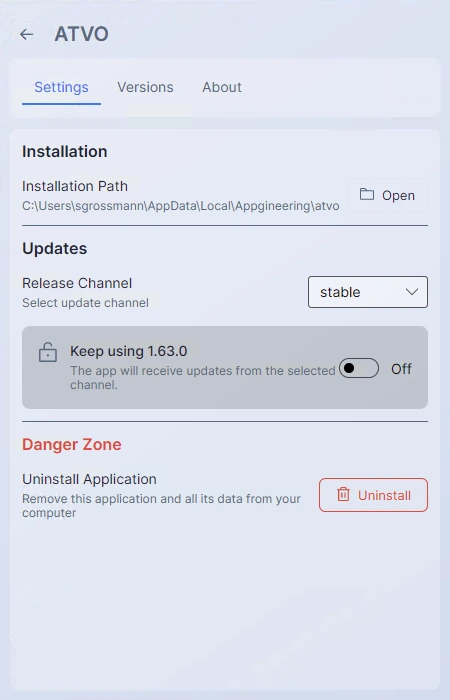
Settings Tab
Per-application settings, including the installation path, release channel, version lock, and the uninstall button. See Per-Application Settings.